How Hangr works, from drop-off to pickup
Follow one dry cleaning order across the counter. Every picture on this page is the real screen, from a demo shop, that your staff and your customers use.
One order, from the counter and back
Take the order
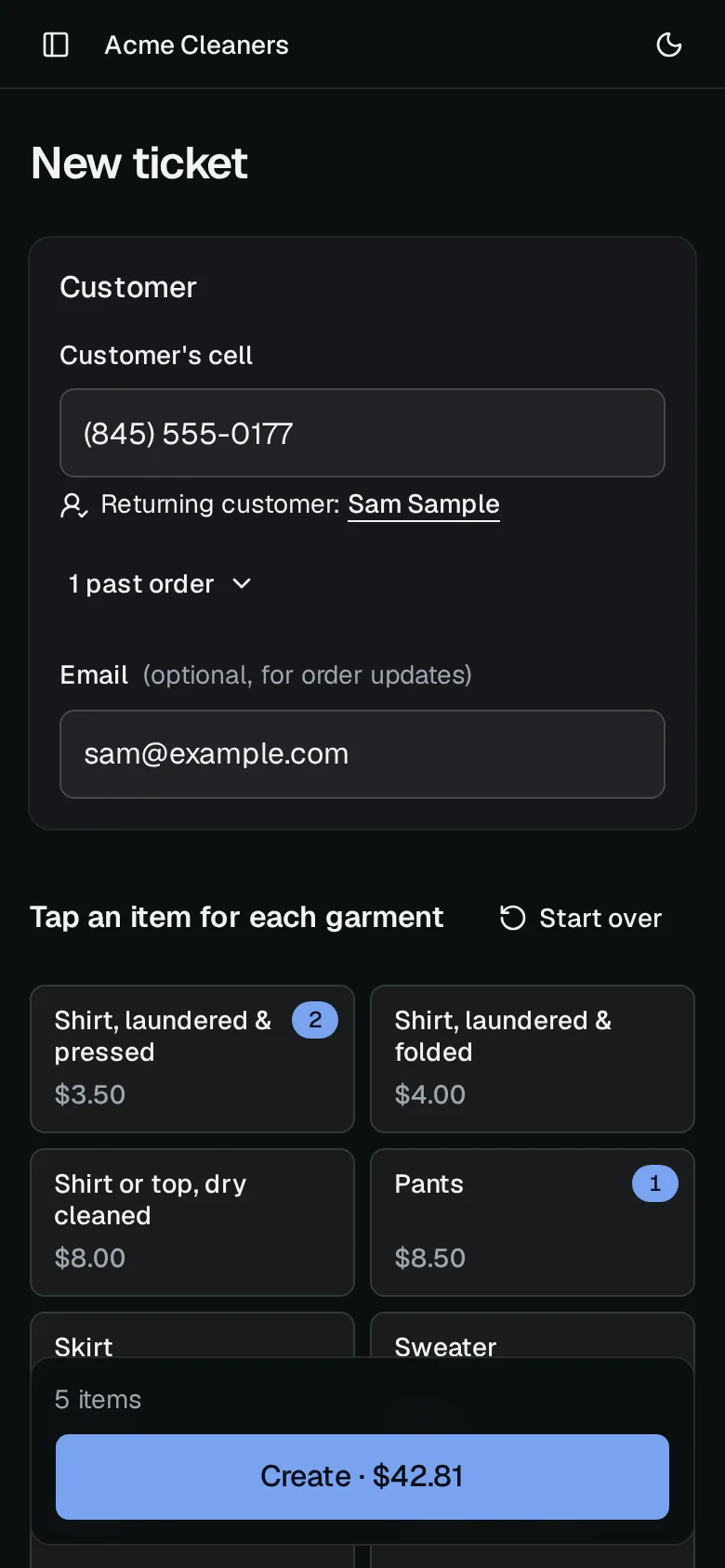
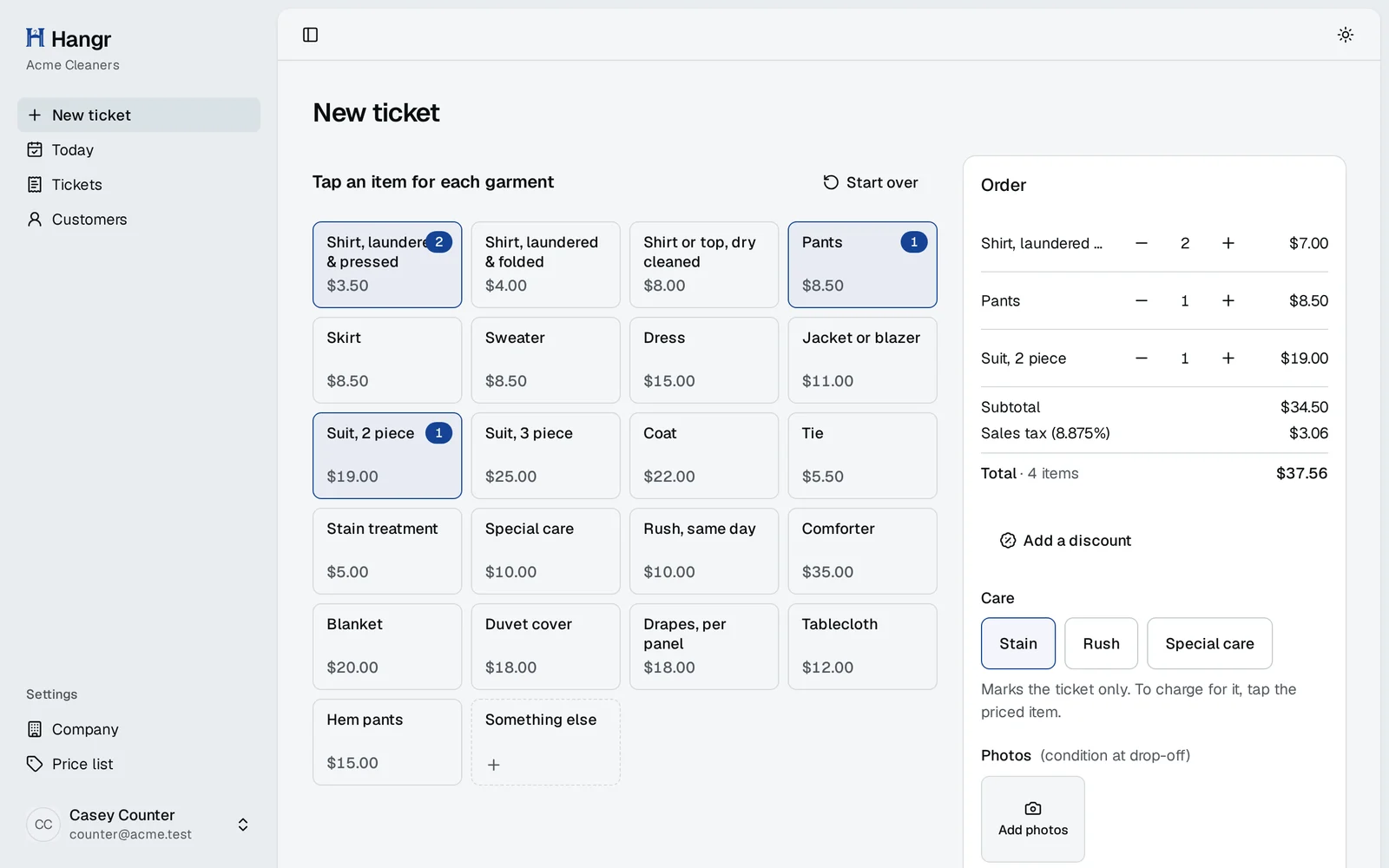
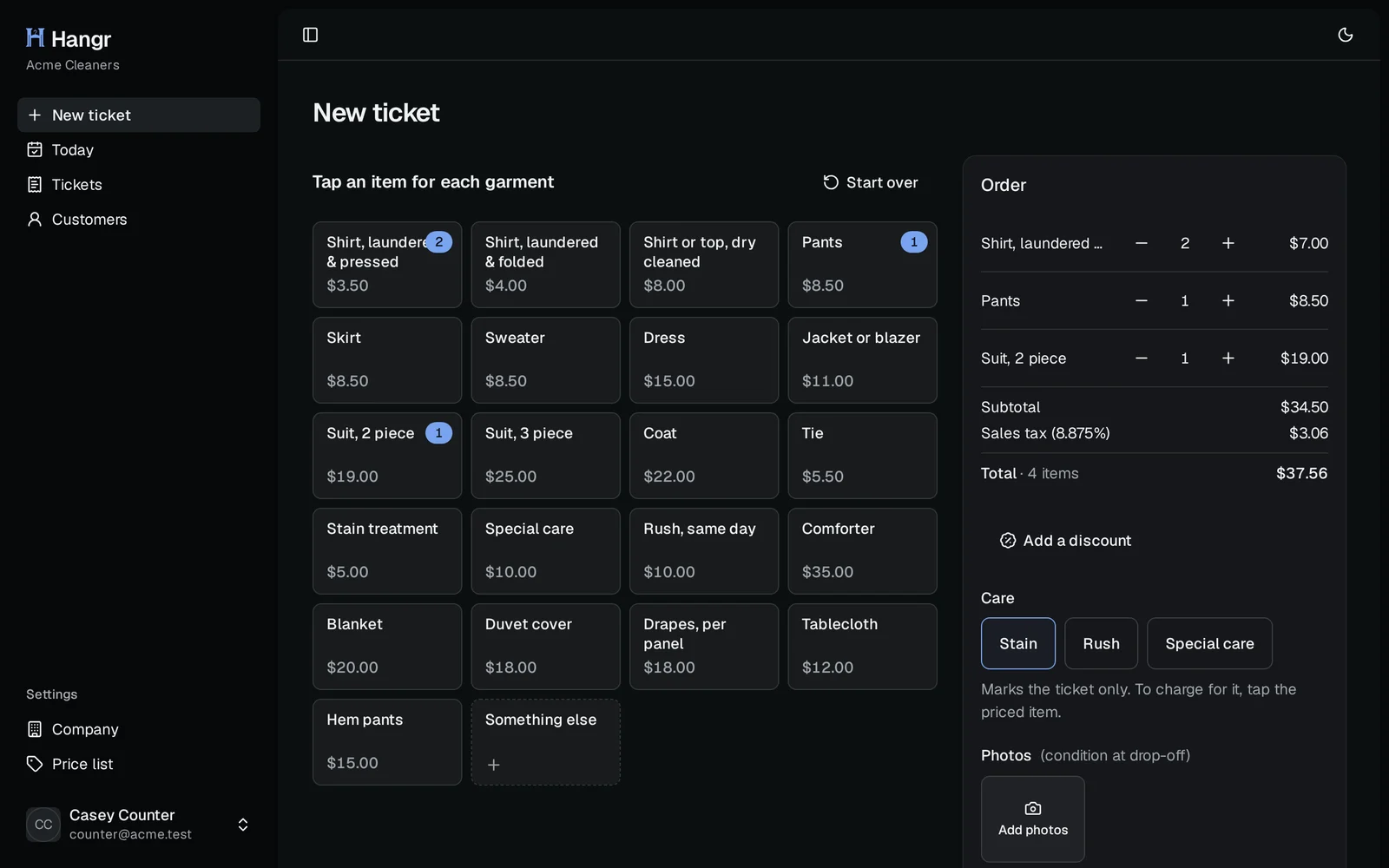
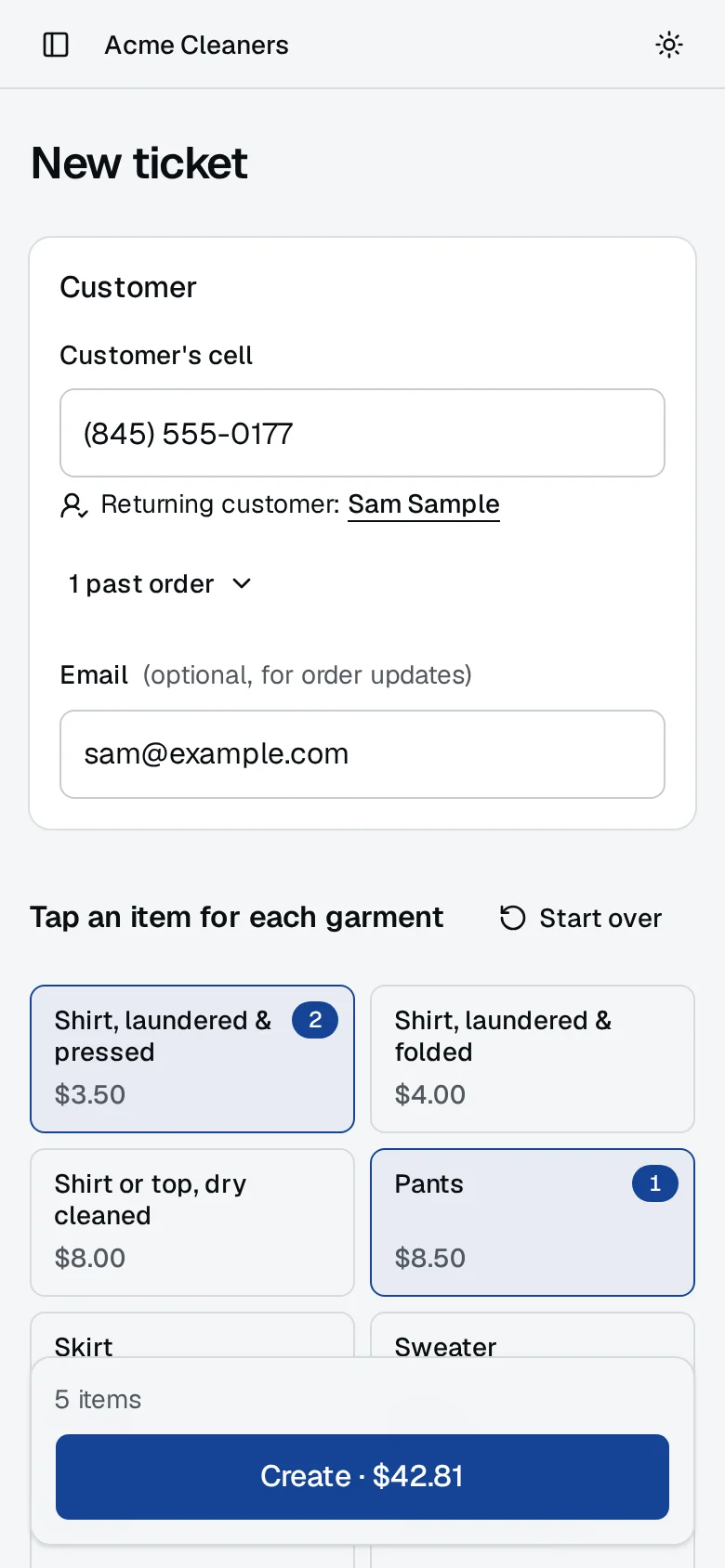
Type the customer's cell first: a returning customer comes up with their name, their email and their last orders. Tap a tile for each garment, add a stain or rush flag, take a photo of any damage, and the ticket adds itself up with a ready-by date.
On screen: New order
Print the receipt with its QR code
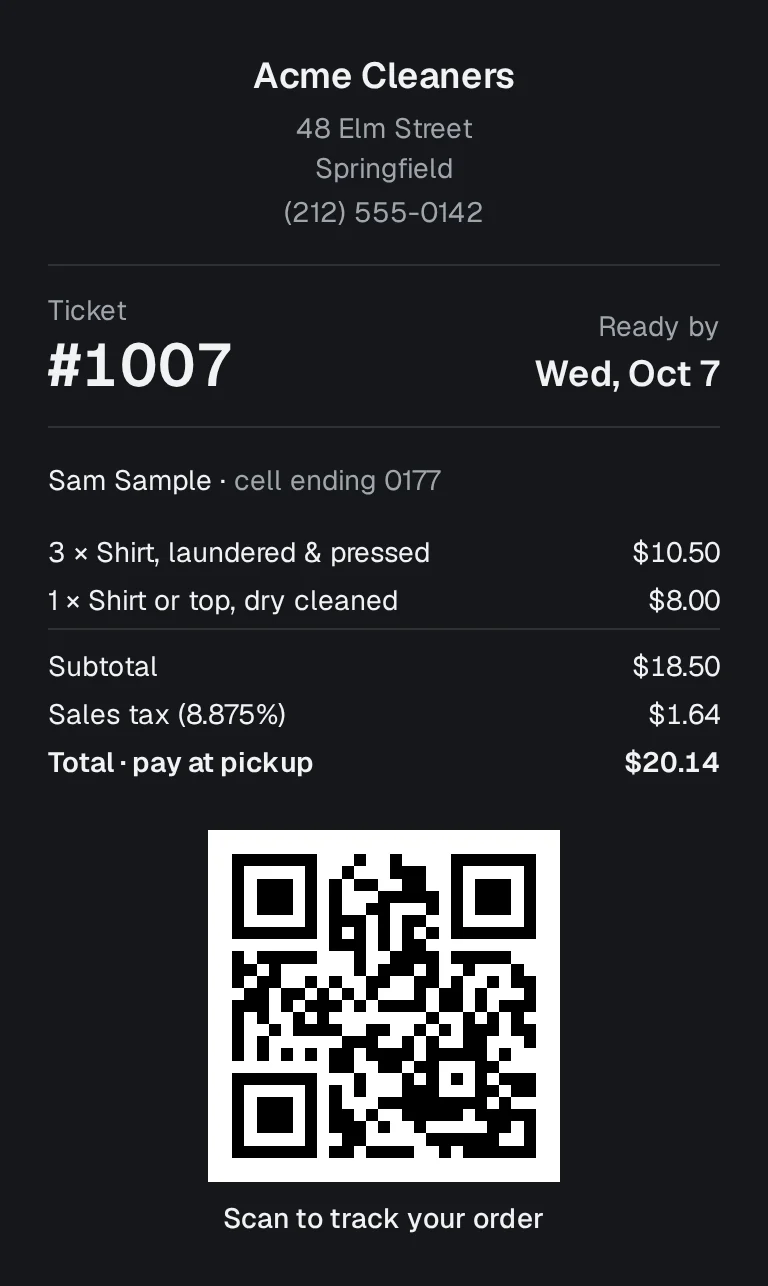
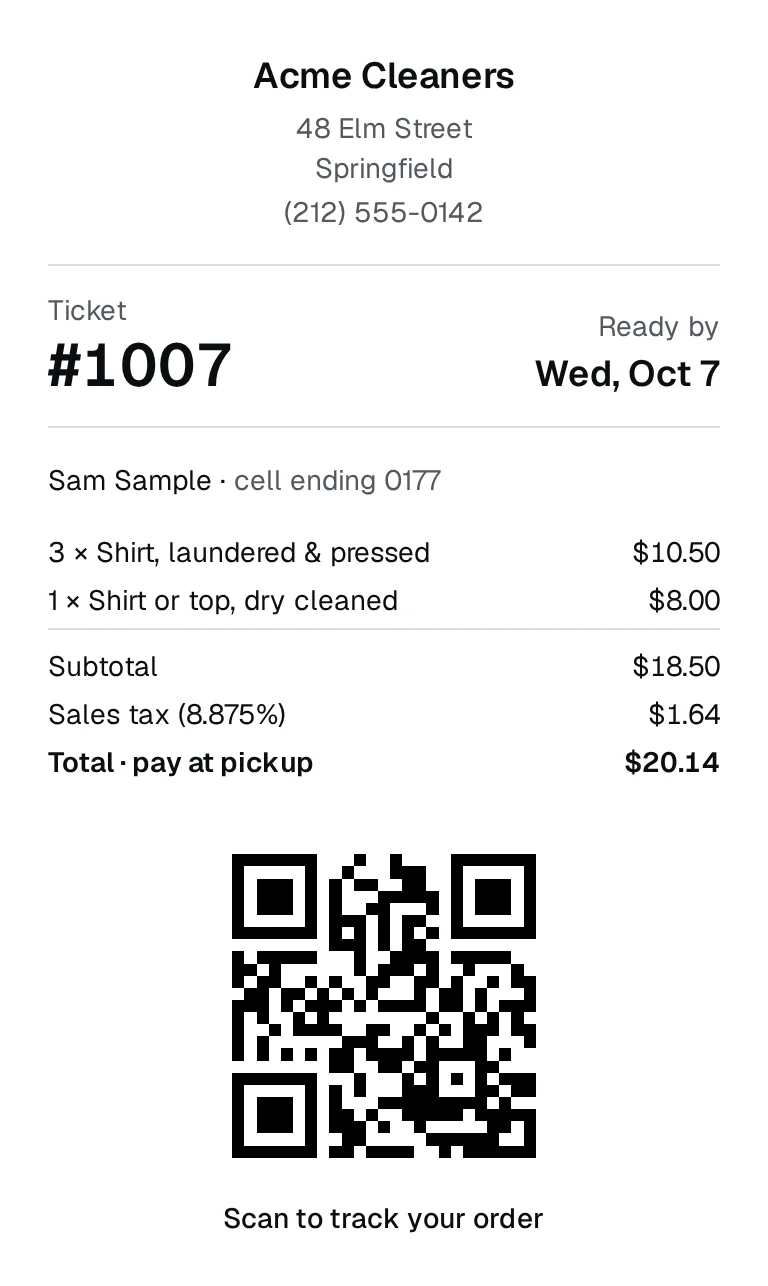
Create the ticket and print an 80 mm receipt: your shop's name, the ticket number, the ready-by date, the items, the total and a QR code. Write the ticket number on your garment tag, as you do today.
Scan the code with your phone, or See an example order pagesee an example order page.
On screen: The printed receipt
Your customer follows it on their phone
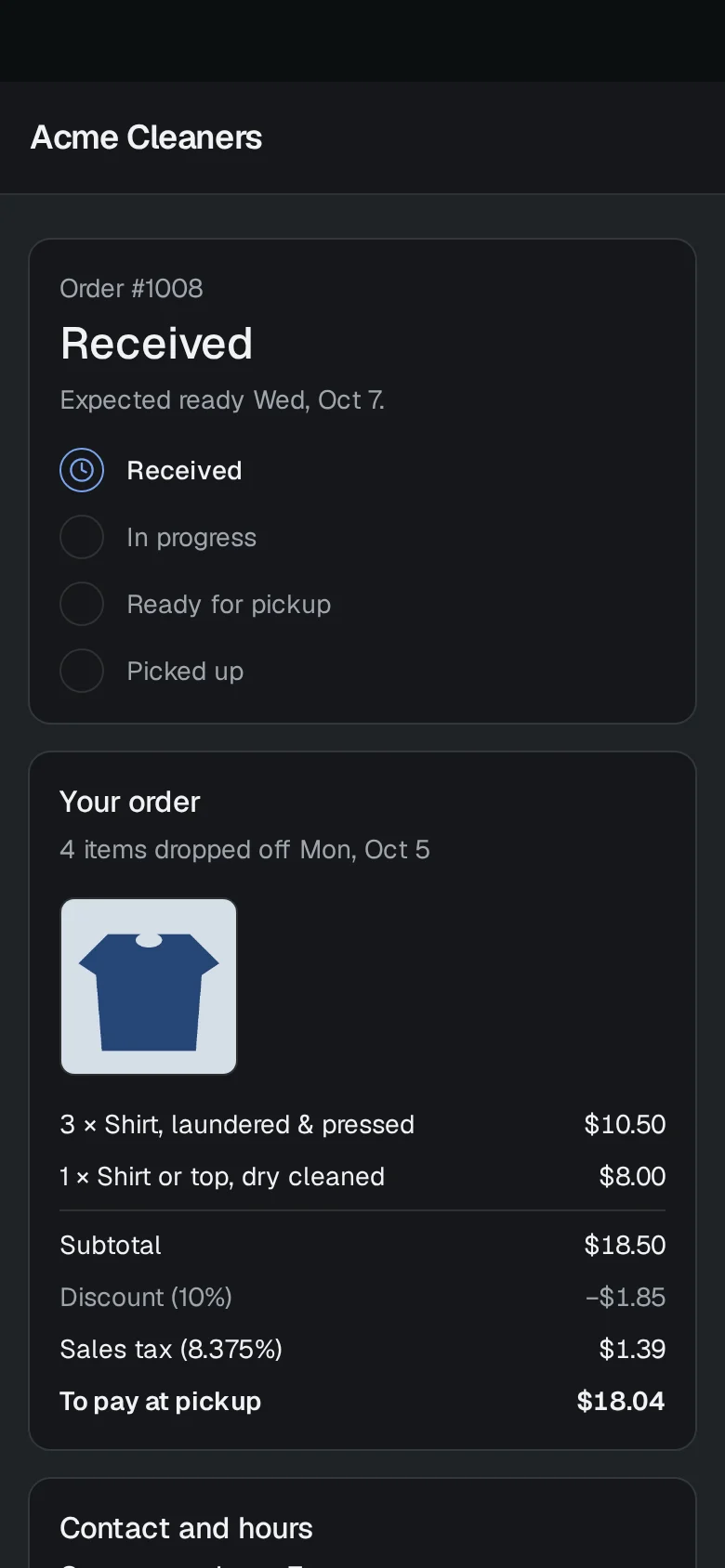
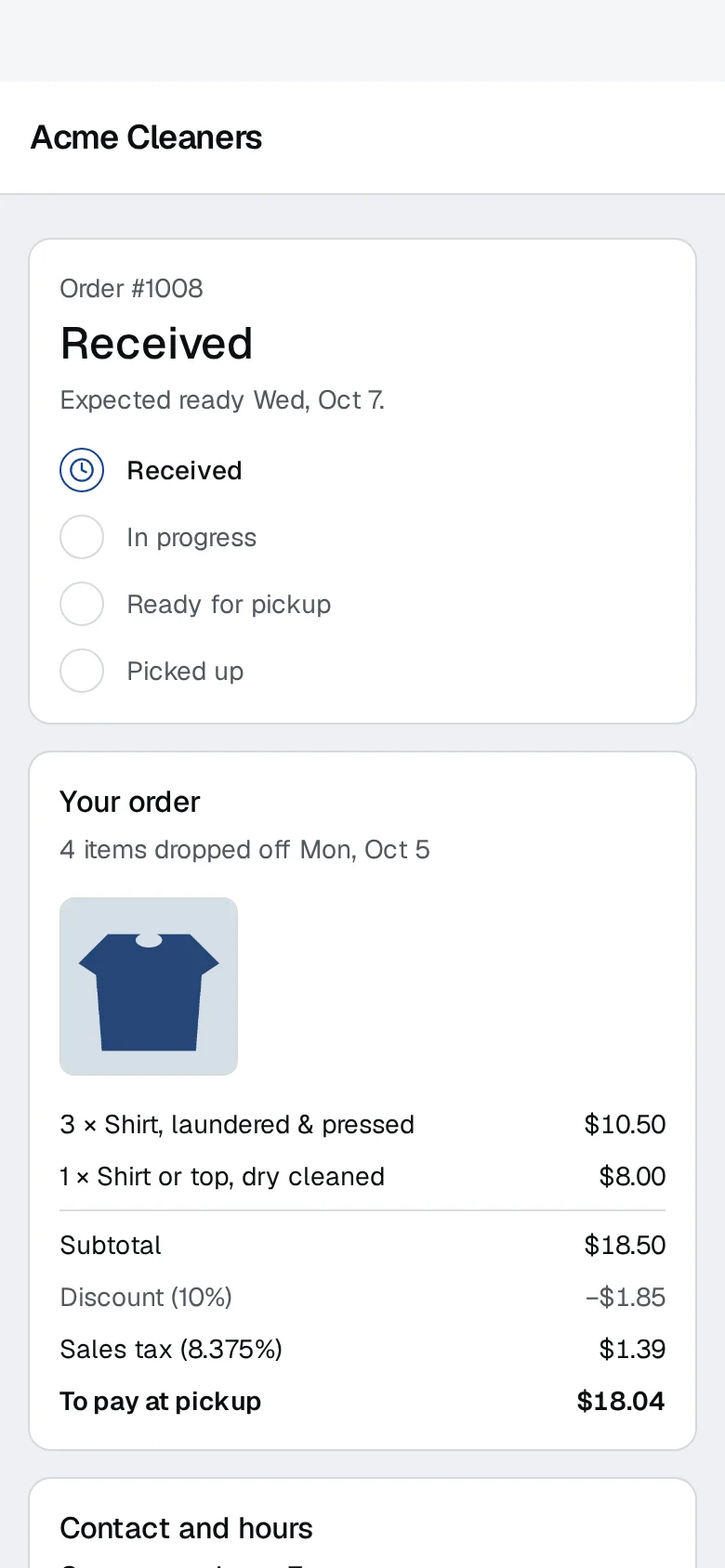
The QR code opens the order in the phone's browser, with no app and no login. It shows the items, when the order will be ready, what's left to pay and your opening hours, with buttons to call you or get directions.
On screen: The customer's order page
Mark it ready, and they get an email
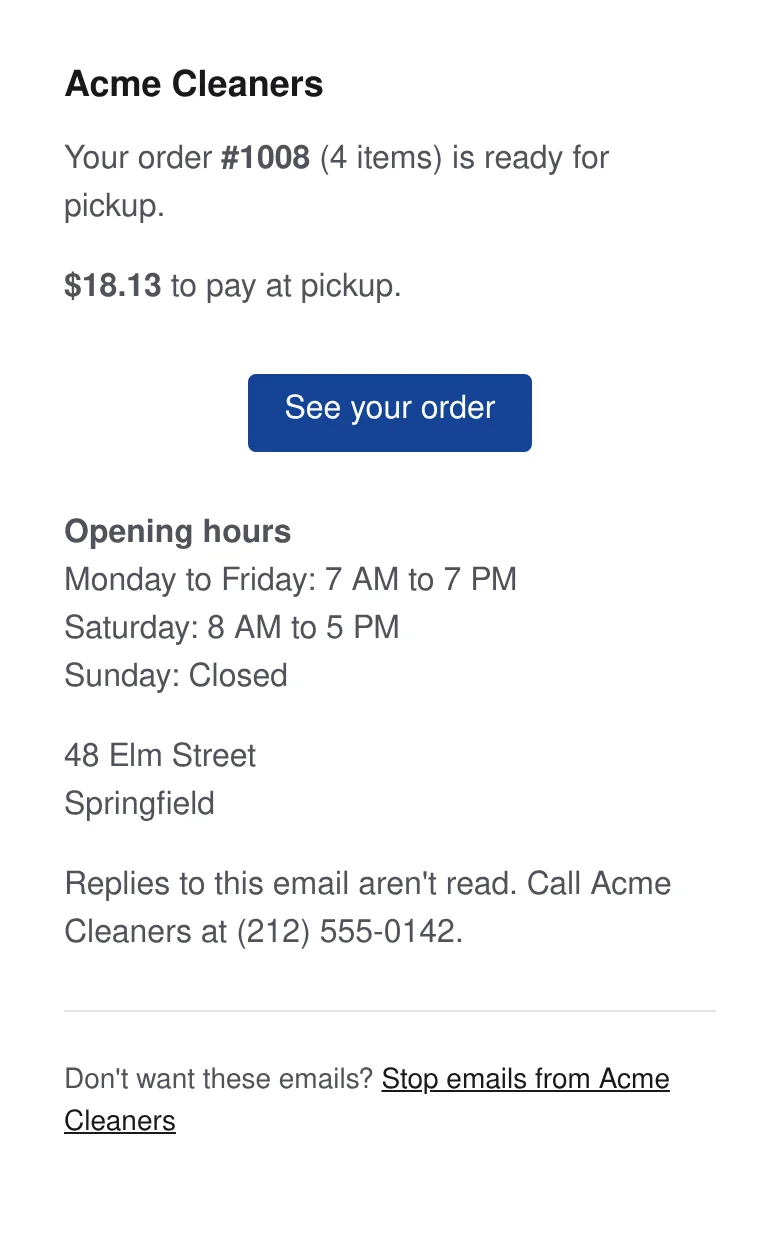
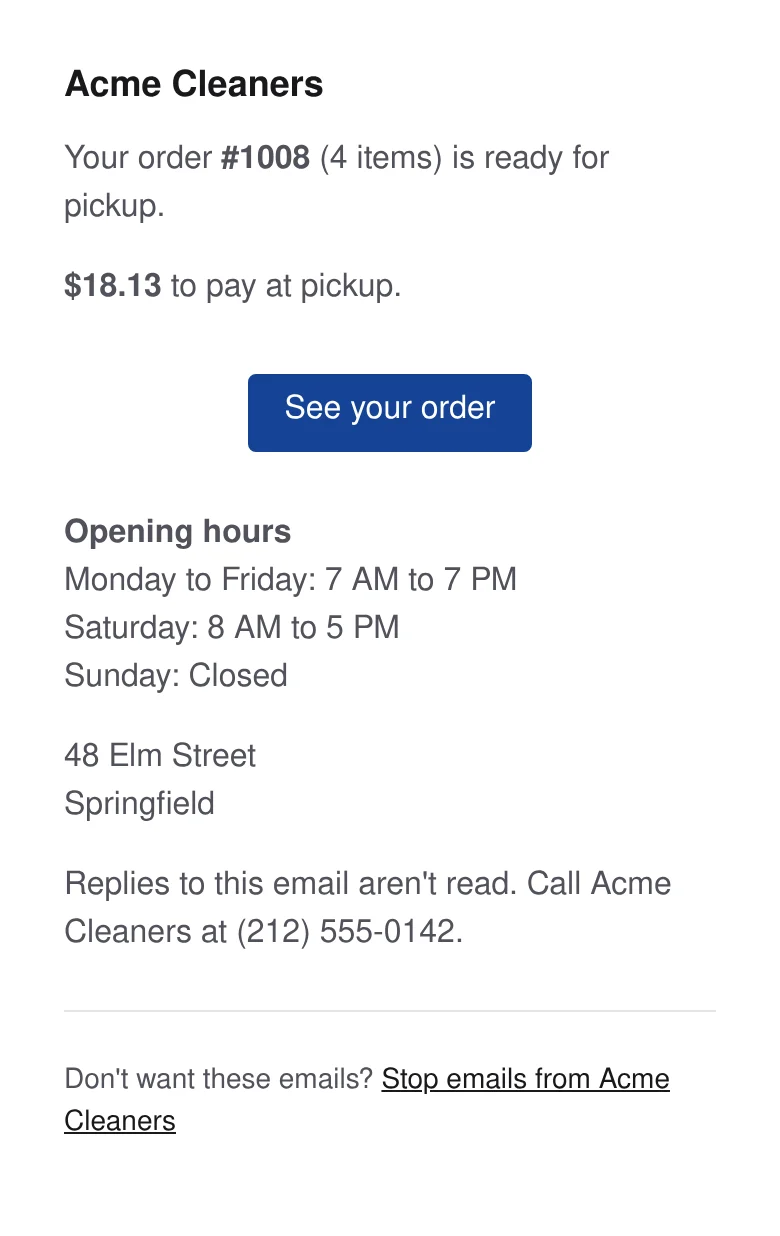
One tap on Mark ready turns their order page to Ready for pickup. If they gave an email at the counter and haven't stopped them, the Ready email goes out with the amount to pay and the link to their order. Tapped it by mistake? Undo within 10 seconds and the email never leaves.
Texts to customers are rolling out and are not live yet for any shop.
On screen: Mark ready, then the customer's Ready email
Keep the whole day on Today
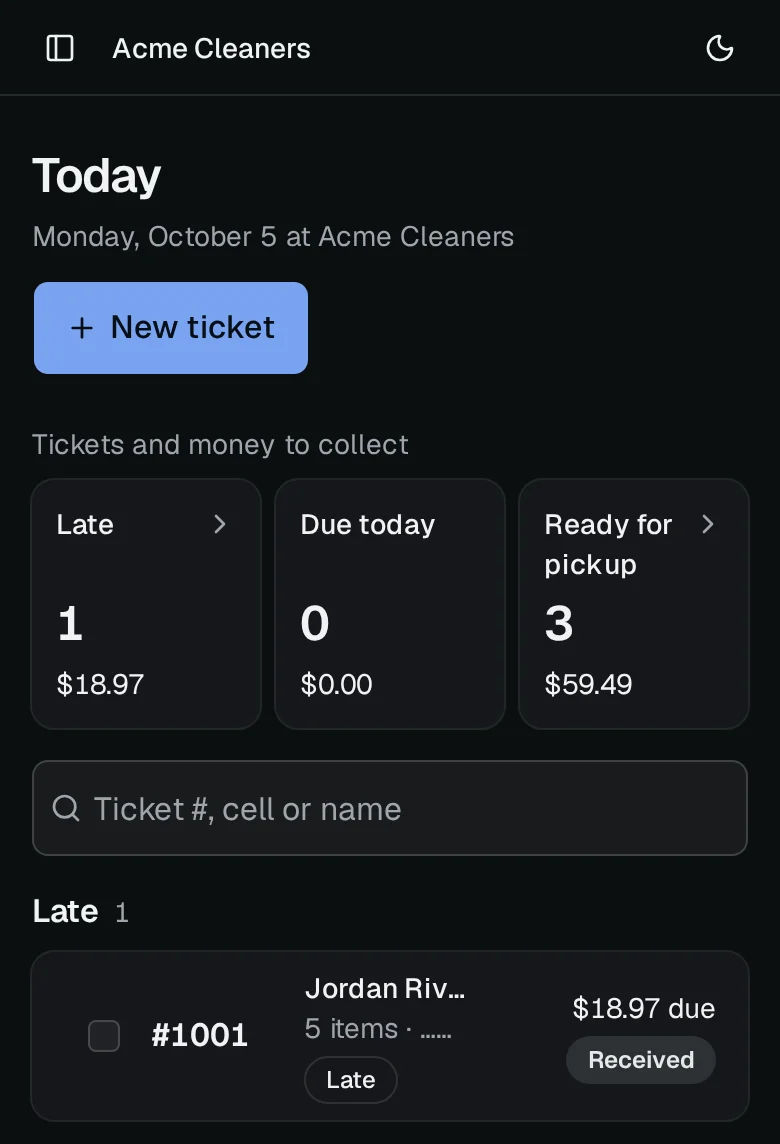
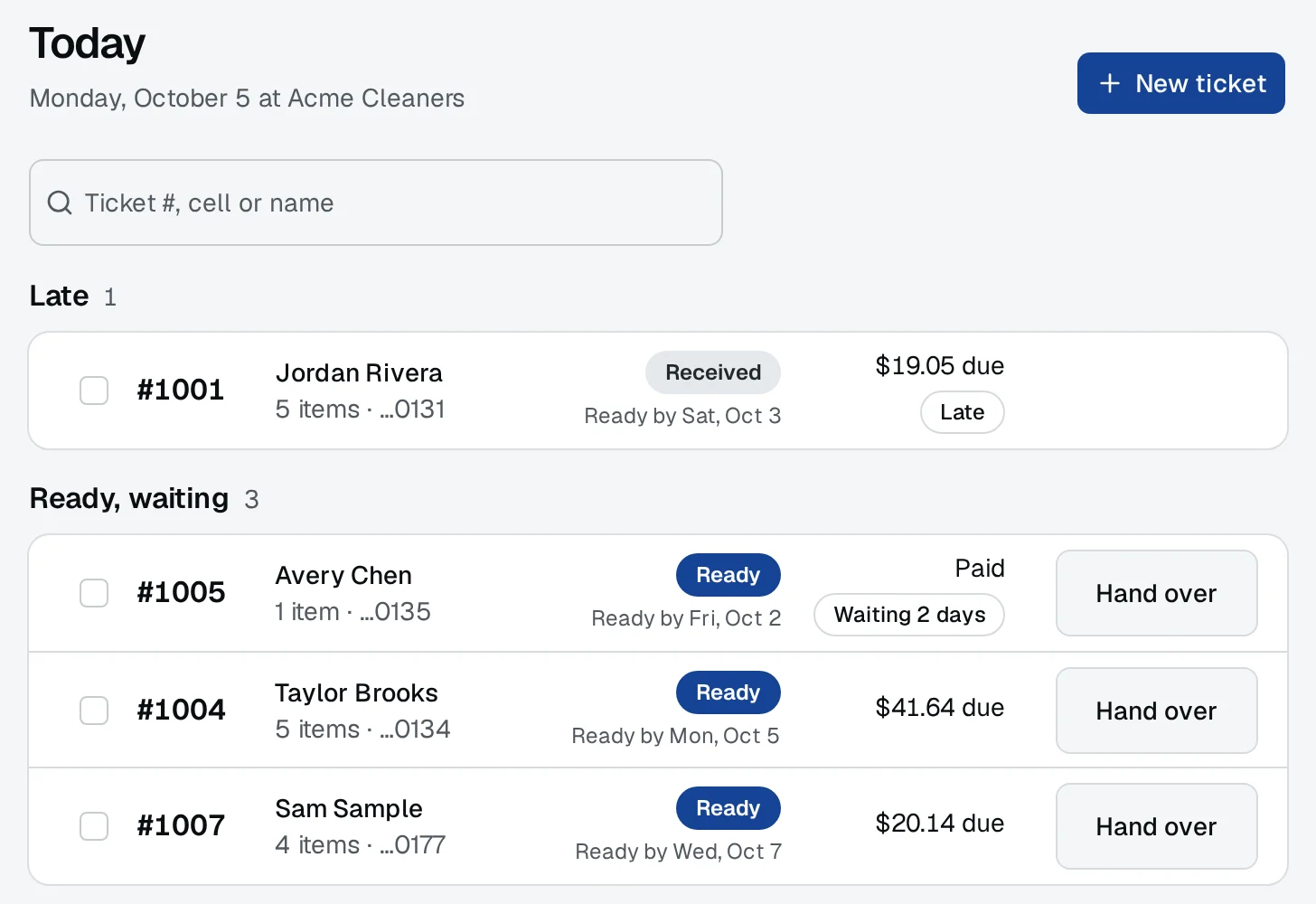
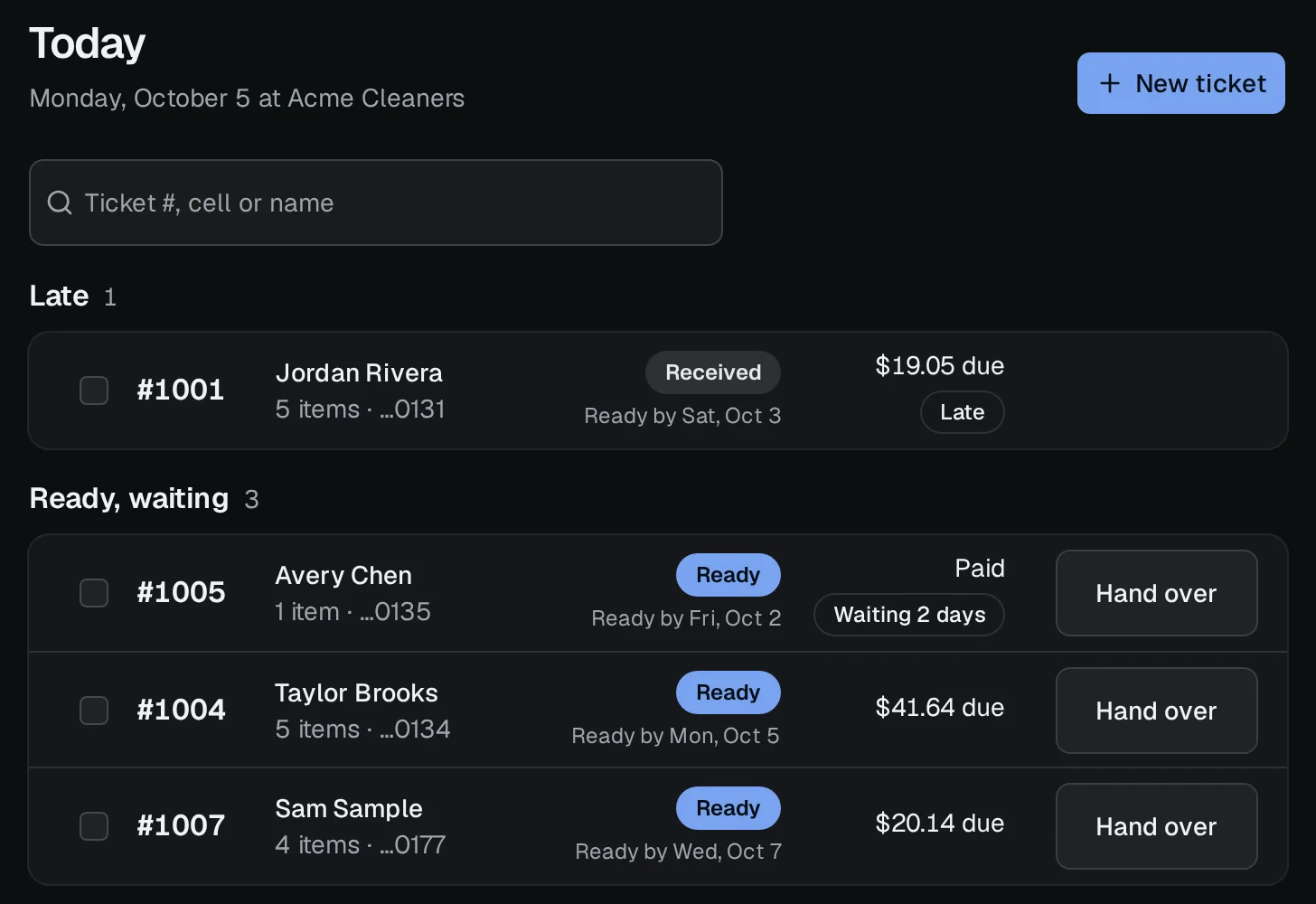
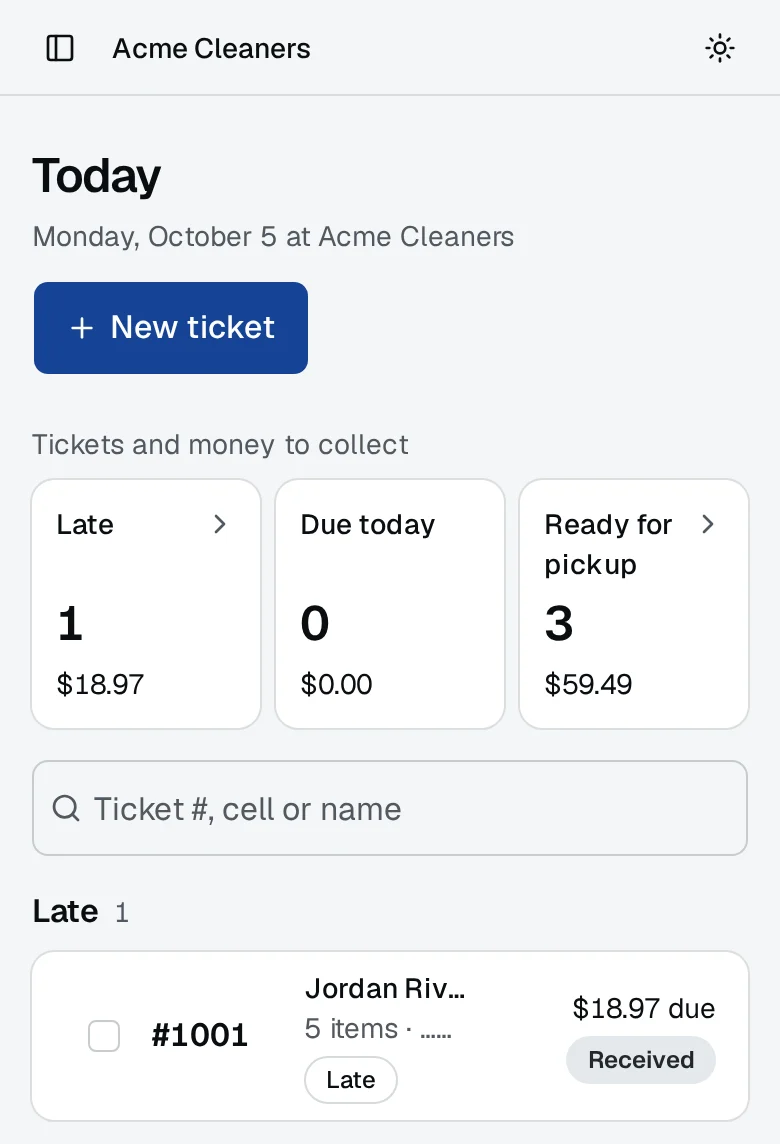
Late orders, orders due today and orders ready for pickup sit at the top, each with the money still to collect. Every other order is grouped by what it needs next, and the search finds a ticket by its number, the customer's cell or their name.
On screen: Today
Hand it over
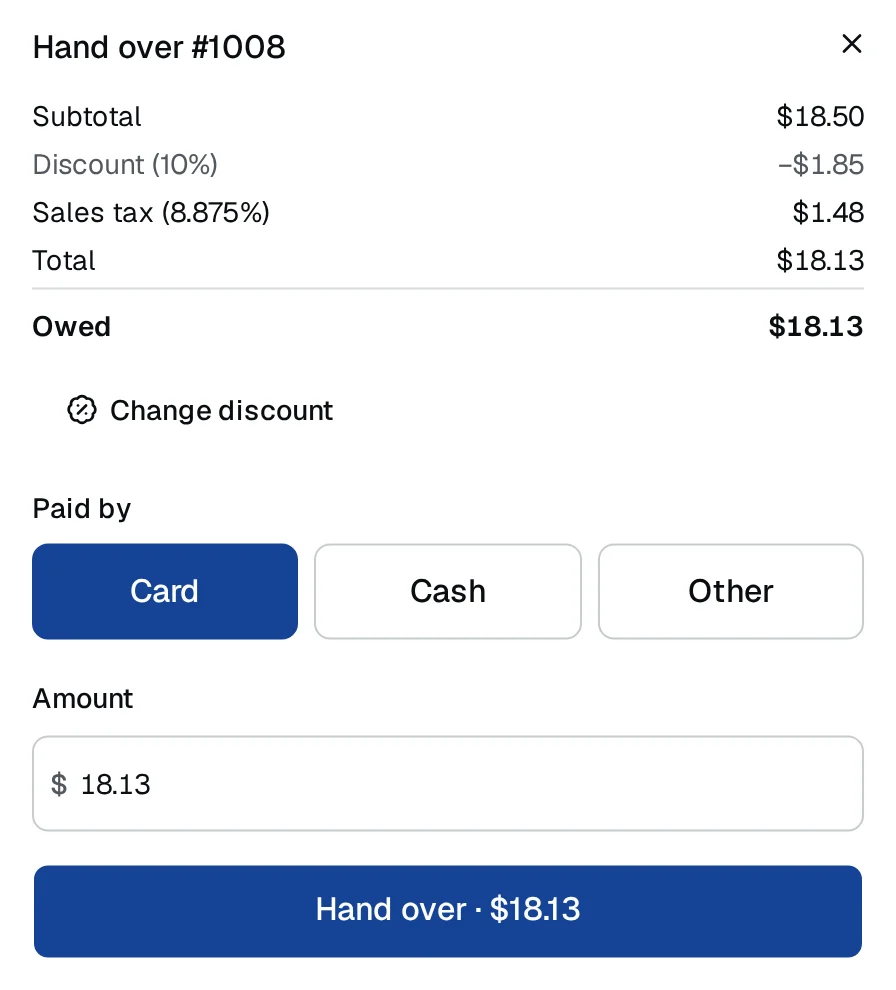
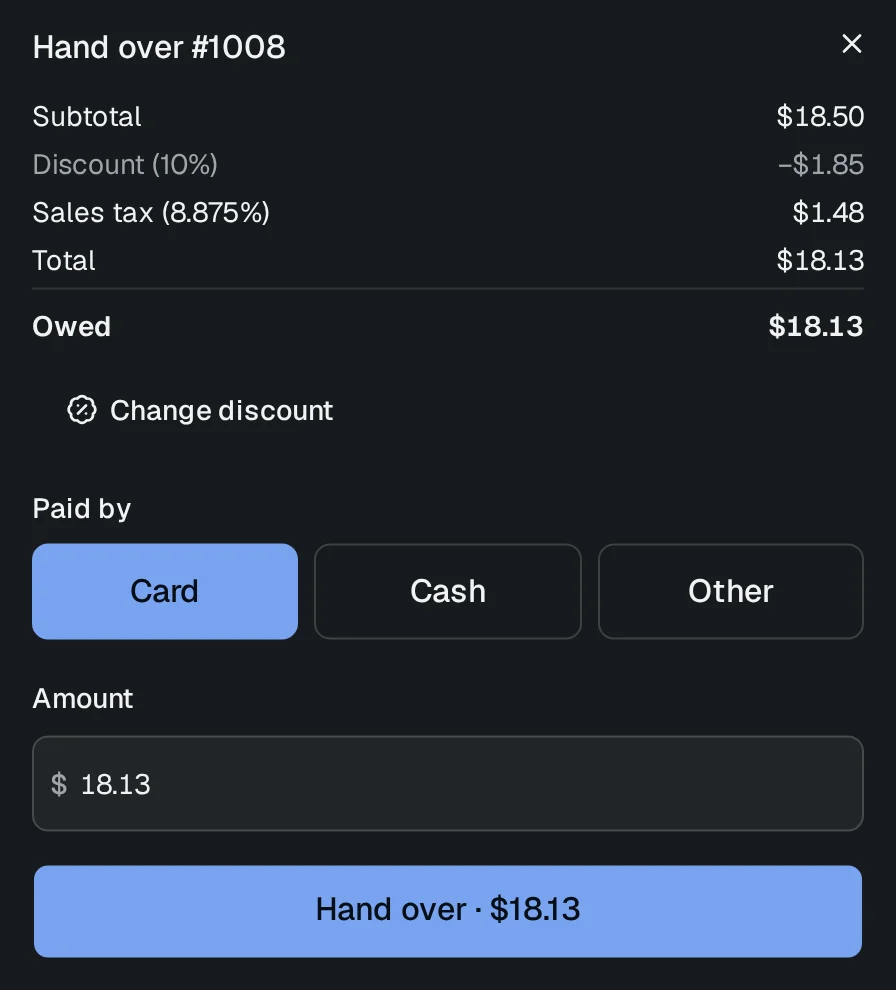
When they come in, Hand over shows what they owe, with sales tax and any discount worked in. Record cash, card or other and the order is picked up; an order that isn't paid in full can't be handed over. You take the money as you do today: Hangr records payments, it doesn't process them.
On screen: Hand over